Basic Malware Analysis
Today I will be going through the basics of malware analysis. I’ll also be noting some theory on how to think when performing malware analysis
In this scenario, employee’s have received a an email from who appears to be a senior at the company. It notes that the company will be using a new program that they can download (.exe).
There are two types of malware analysis:
- Static Analysis
- Dynamic Analysis
Static Analysis
A method of malware analysis performed without executing the sample. Some of the information that can be gathered through static analysis:
- Checksums: Used to track and catalogue files and executables. For example, you can Google the checksum to see if it’s been identified before
- Strings: Sequences of readable characters within an executable. (IP addresses, URLs, commands, passwords, etc)
- Imports: A list of libraries and functions that the application depends on. Useful especially in Windows, as they allow you to see how the application interacts with the system
- Resources: Contain data such as the icon that is displayed to the user. Malware has been known to hide itself here
It’s important to note that you can’t really know for certain how malware will act off static analysis alone, it will need to be executed
Initial Assessment
We can use a program called PeStudio to analyze the malware before execution. At this stage of the analysis, the file > sha256 propery within the table is of interest, as it’s a checksum, which is a unique identifier. We can now research the checksum or simply note it for later.
In this example, the checksum for our analyzed sample was:
F29C270068F865EF4A747E2683BFA07667BF64E768B38FBB9A2750A3D879CA33
Strings are also of interest, so within PeStudio, we are going to review the strings of the executable. These are important as they could reveal the attacker’s command infrastructure. In this case, one of the strings is the flag I’m looking for:
THM{STRING_FOUND}
Dynamic Analysis
Dynamic Analysis involves executing the malware sample to identify its behavior and how it interacts with the OS.
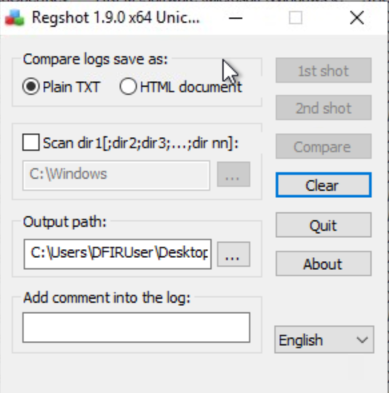
To do this, I’m going to use a tool called Regshot. Regshot works by creating to snapshots of the system, one before the sample is run and one after the sample is run. The results are then compared to identify changes.
Malware aims to run everytime the computer it’s infected is powered on. A common technique for malware is to add a Run key to the registry, which is frequently used to specify which applications are to run automatically at startup.
Within Regshot, I’ll select my 1st shot before running the malware and save it to a specified location. I then run the malware and took the 2nd shot a few minutes after. I then hit compare to compare the two different snapshots, before and after running the malware.
After Running Regshot and searching the given log for the search term “hophelper” (the malware sample is hophelper.exe), I found the flag I was looking for.
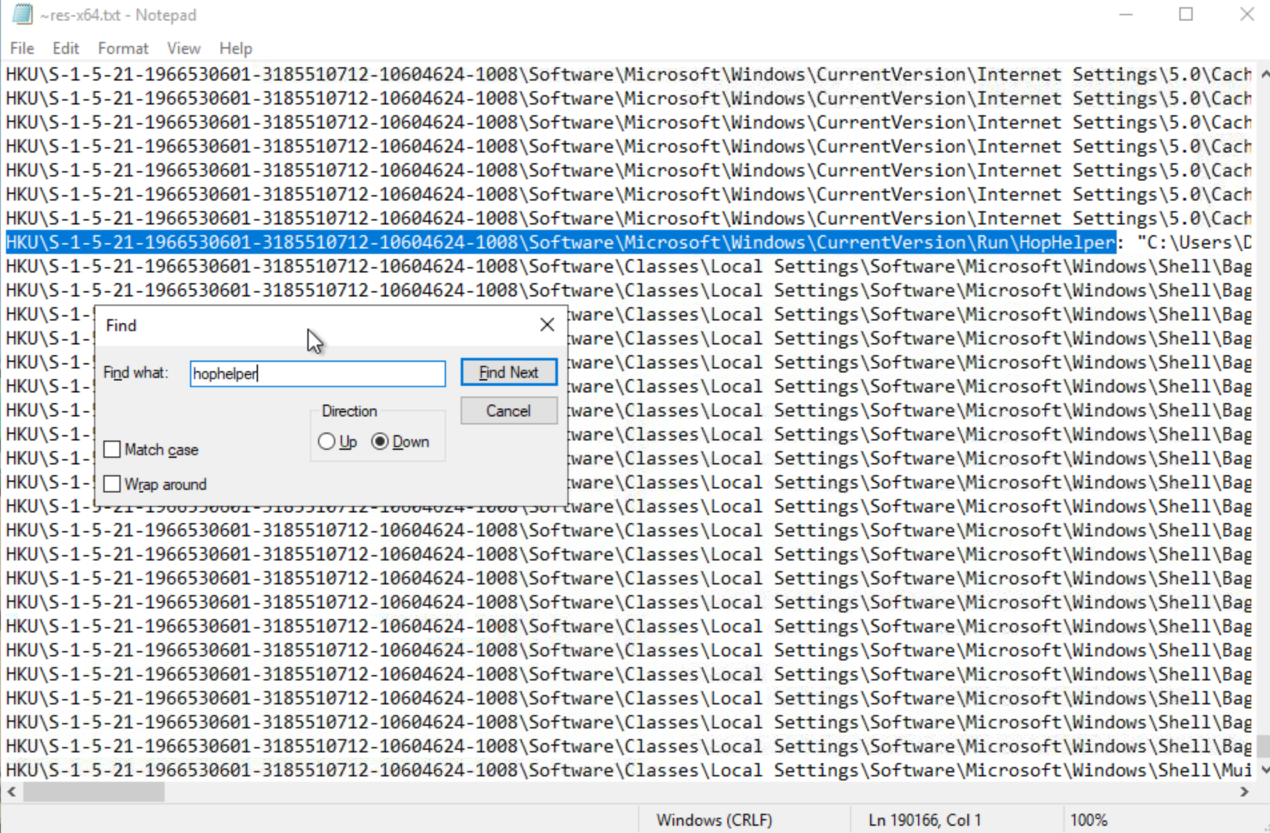
What registry value has the HopHelper.exe modified for persistence?
HKU\S-1-5-21-1966530601-3185510712-10604624-1008\Software\Microsoft\Windows\CurrentVersion\Run\HopHelper
ProcMon
Procmon is used to monitor and investigate how processes are interacting with the Windows OS. It allows us to see what a process is doing. For example:
- Reading and writing registry keys
- Searching for files
- Creating network connections
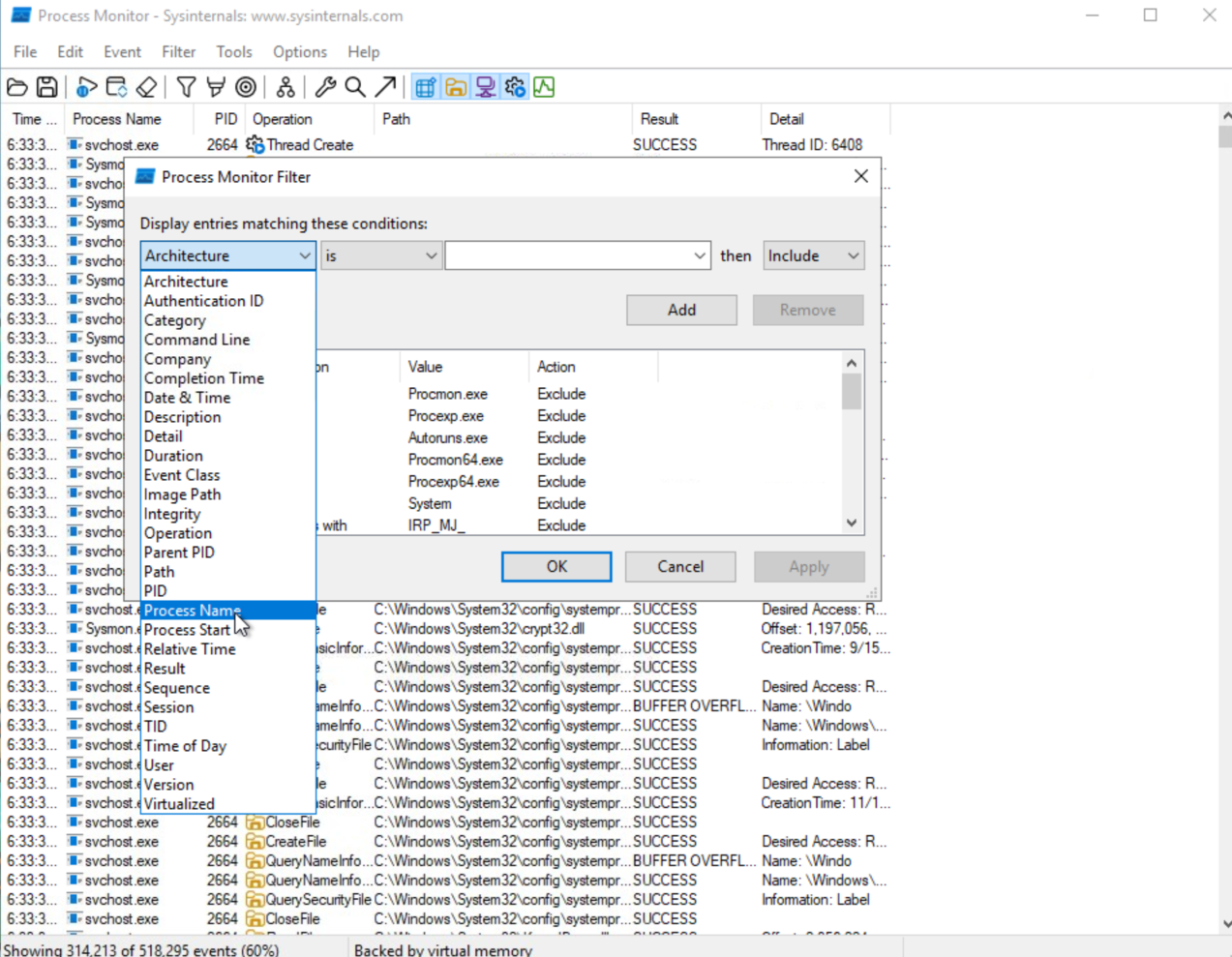
Launching ProcMon and pressing the start capturing button, I can now run the malware sample again. There will be a lot of information to sort through, however we can use filters to narrow down our search.
By process name:
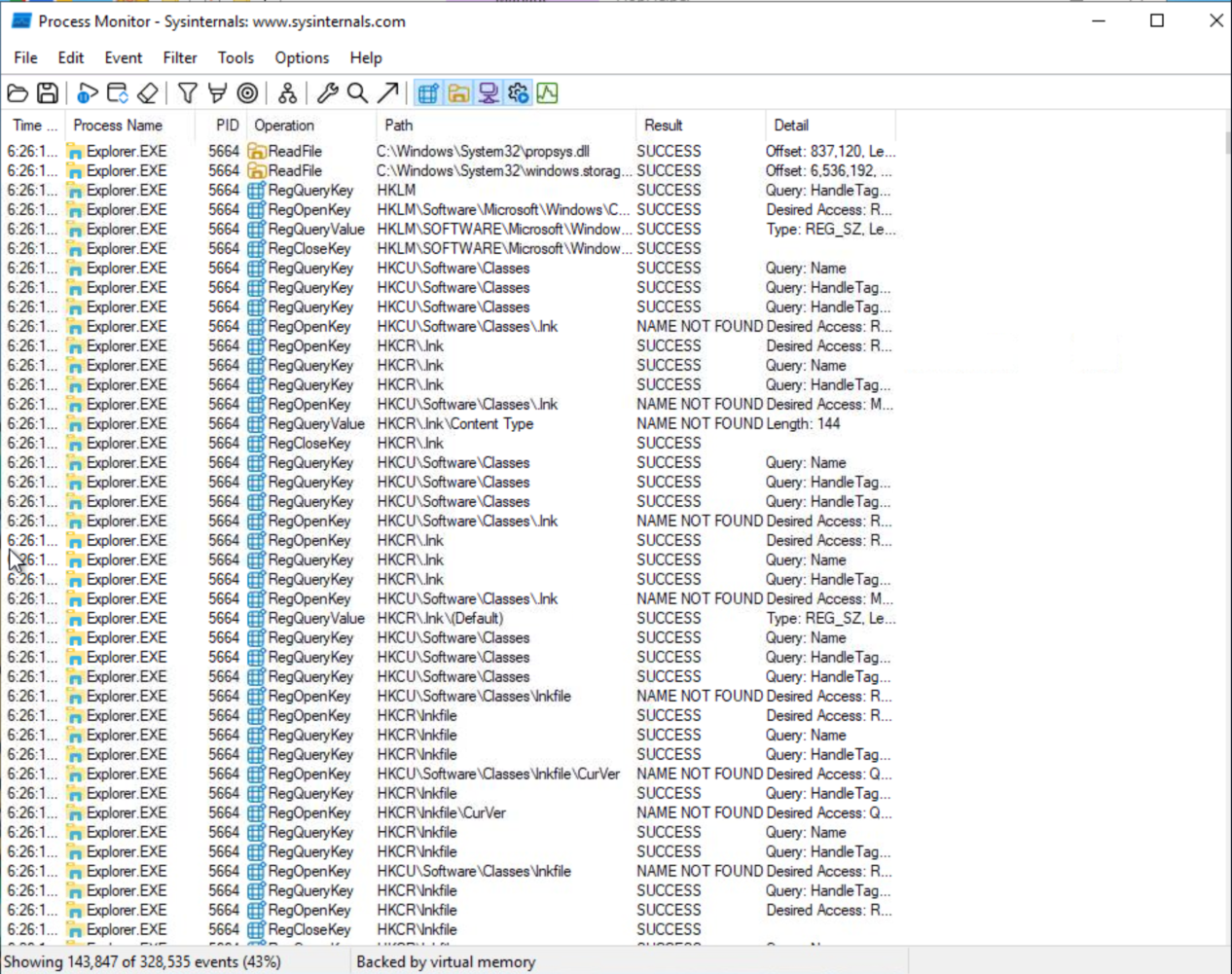
By Operation Type: